

MetaMask
Install MetaMask, create a wallet, and add Mandala Chain as a custom network.
MetaMask is the most common Ethereum browser-extension wallet. Because Mandala is EVM-equivalent, MetaMask works against it the same way it does against Ethereum mainnet, once you point it at the Mandala RPC.
Installation
Skip this section if you already have MetaMask.
Step 1: Download
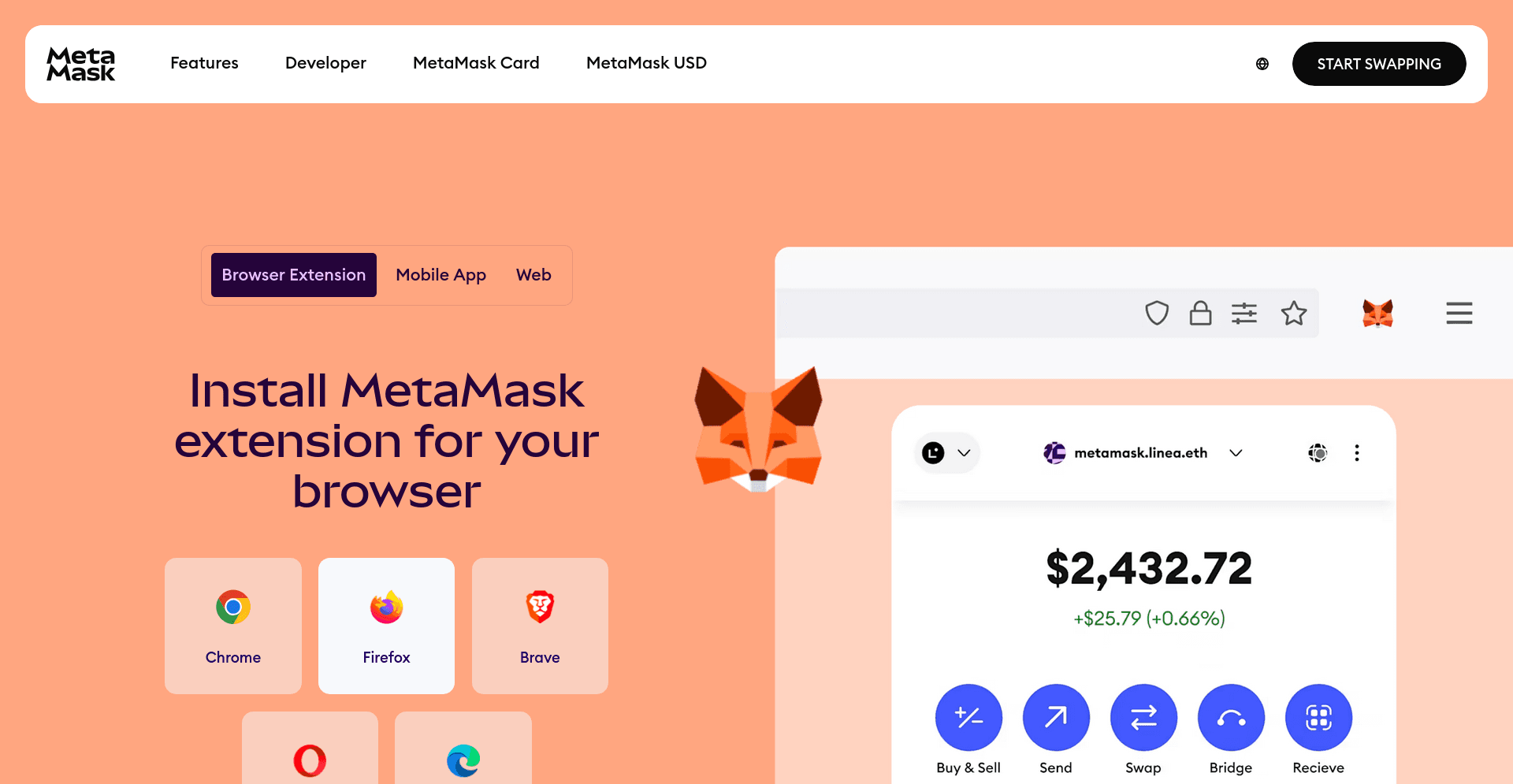
Visit metamask.io/download and select your browser. Verify the URL before clicking; phishing copies of this site exist.
Step 2: Add to your browser
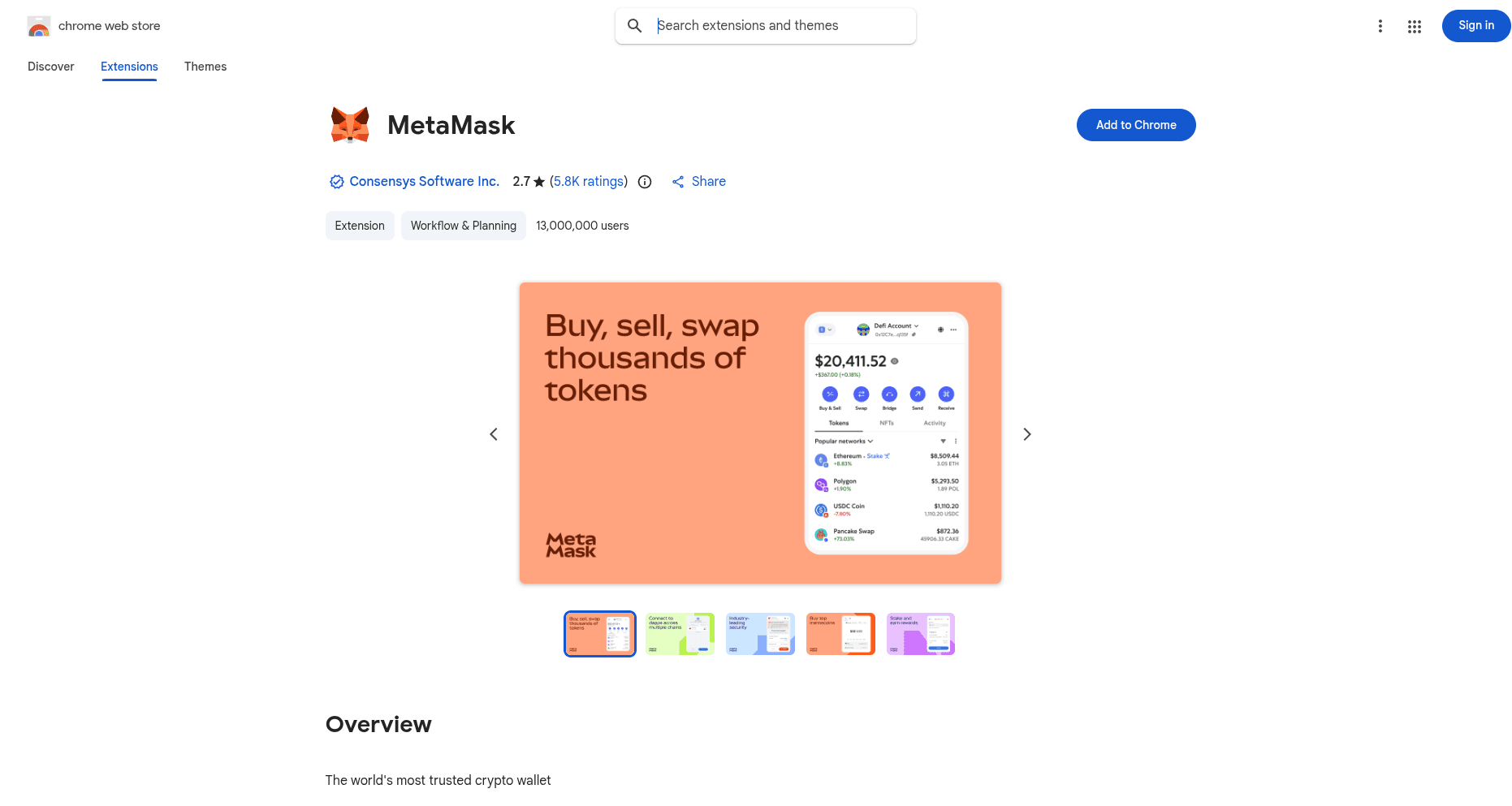
The download button takes you to the official extension store (Chrome Web Store, Firefox Add-ons, etc.). Click Add to Chrome (or your browser's equivalent).
Step 3: Pin the extension
Click the puzzle-piece icon in your browser toolbar and pin MetaMask so the fox icon stays visible.
Creating a wallet
If you already have a MetaMask wallet, skip to Adding Mandala Chain.
Step 1: Open MetaMask
Click the fox icon in your browser toolbar.
Step 2: Get started
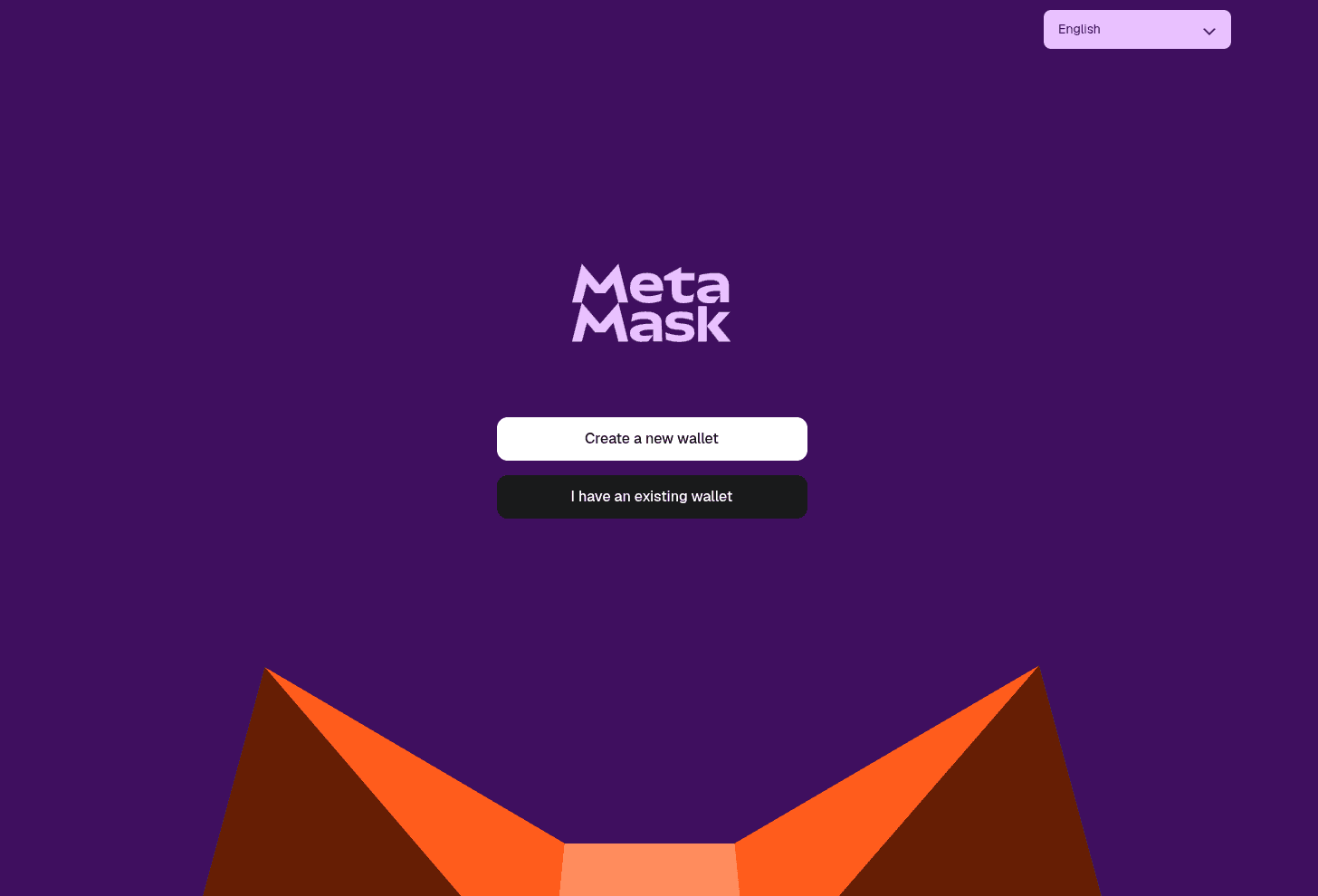
On the welcome screen, click Create a new wallet. To import an existing seed, click Import an existing wallet instead.
Step 3: Choose creation method
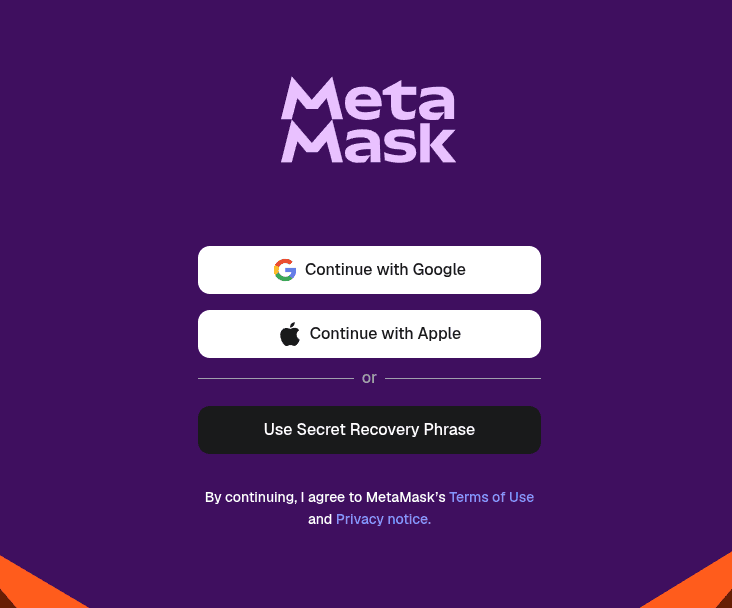
You can continue with Google, Apple, or use a Secret Recovery Phrase. The Secret Recovery Phrase route is the canonical, self-custodial path.
Step 4: Set a password
Pick a strong, unique password. It encrypts your wallet locally on this device.
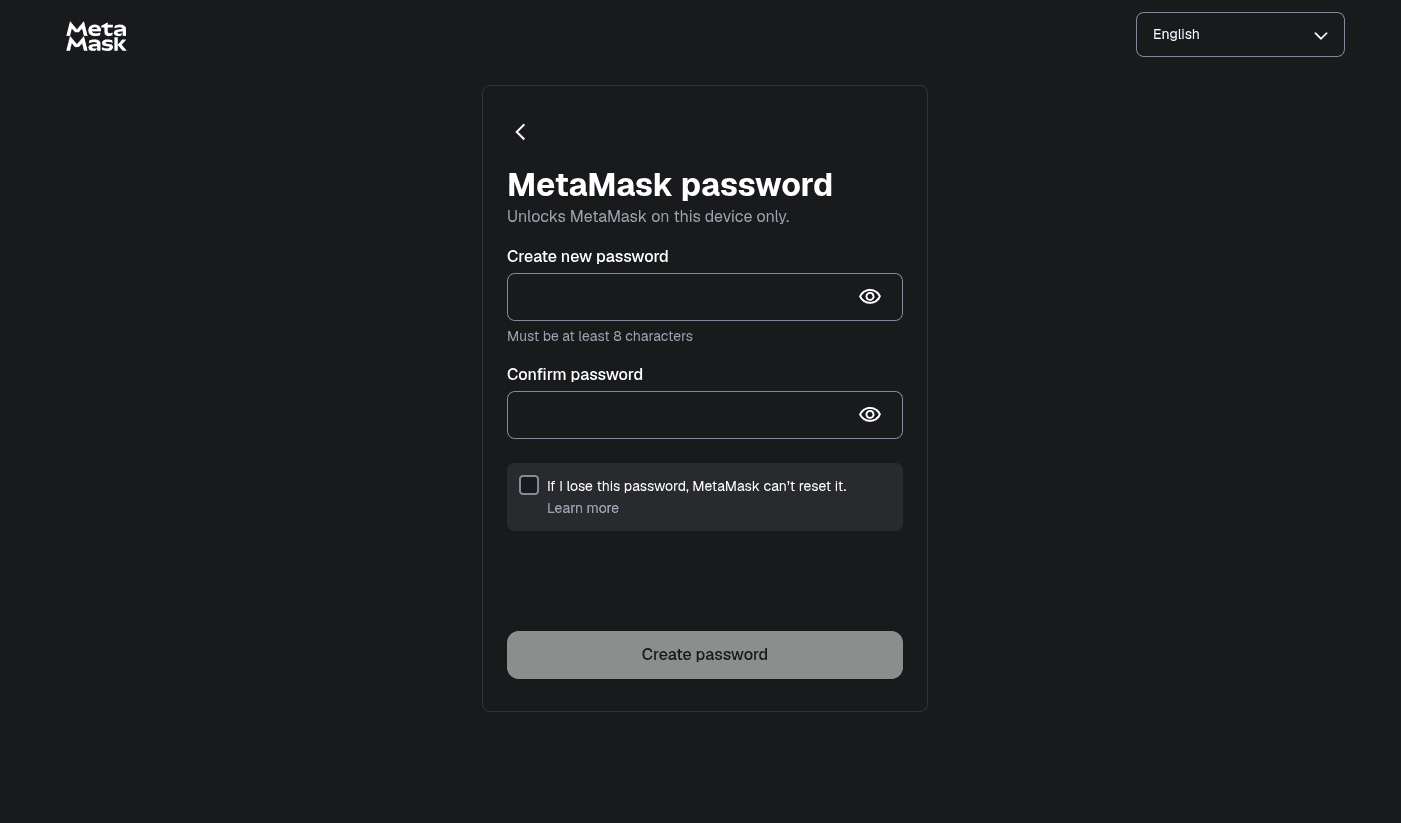
Step 5: Save your Secret Recovery Phrase
MetaMask reveals a 12-word phrase. This phrase, by itself, can recover your wallet on any device. Anyone with the phrase has full control of your funds.
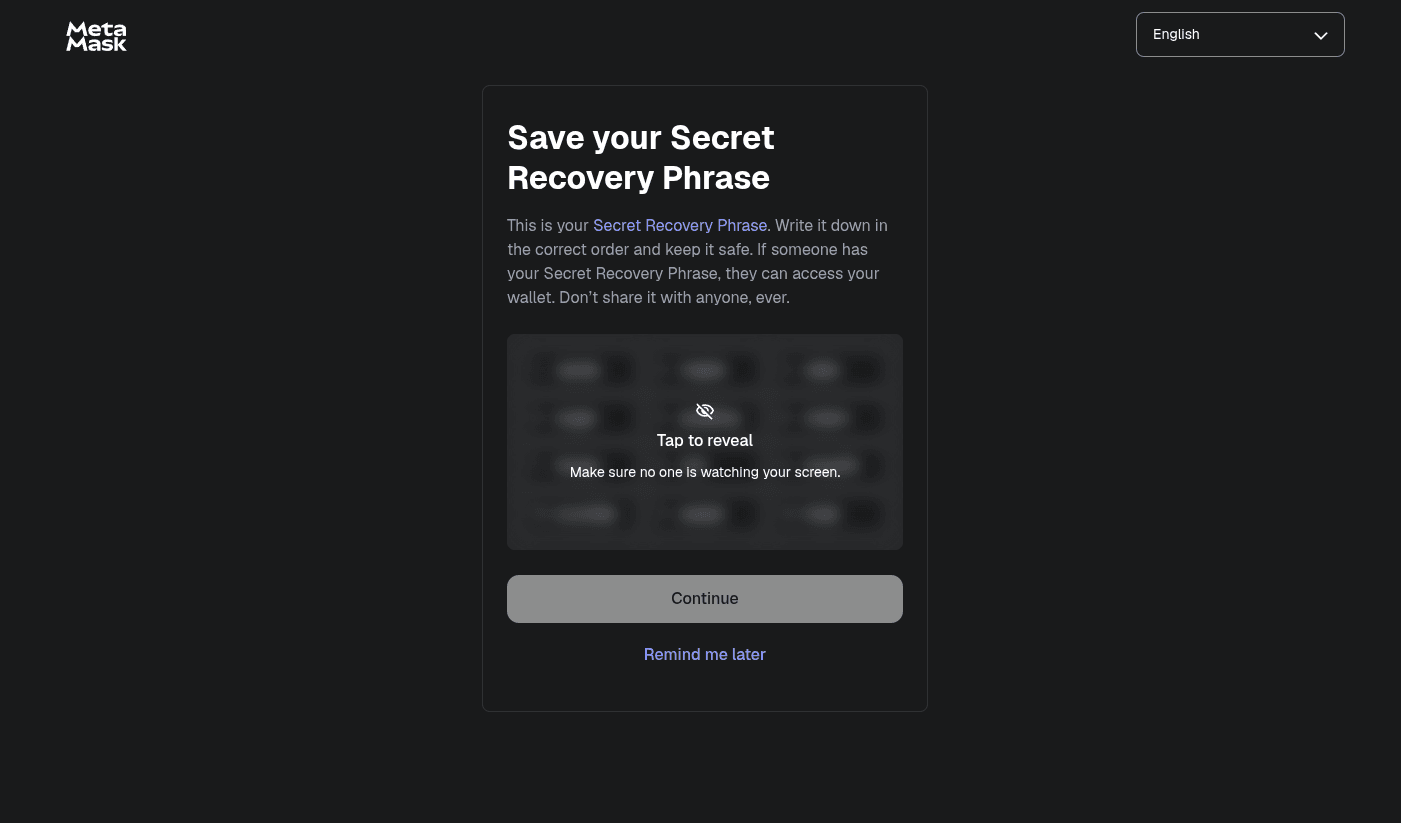
Critical
Write the phrase down on paper. Do not screenshot it. Do not paste it into a password manager that syncs to the cloud. Do not photograph it. Anyone with this phrase has full access to your wallet.
Step 6: Confirm the phrase
MetaMask asks you to re-enter the phrase in order, to confirm you wrote it down correctly.
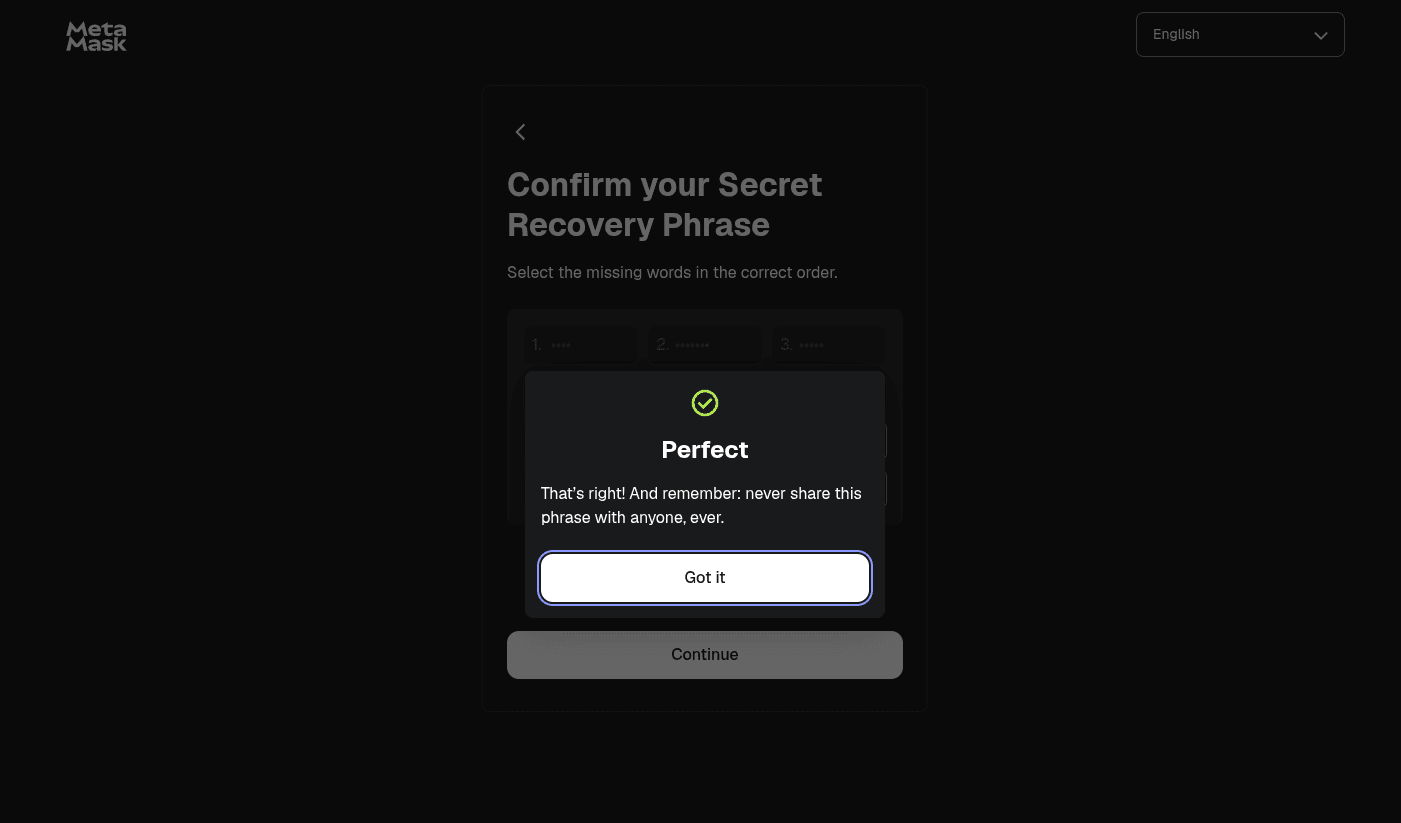
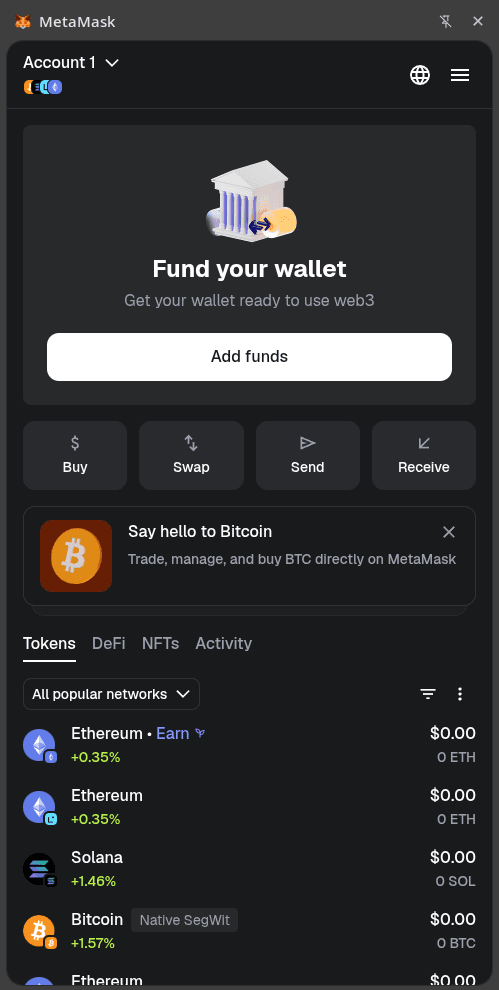
Step 7: Wallet created
You land on the main MetaMask interface with a 0 ETH balance.
Adding Mandala Chain
By default, MetaMask is connected to Ethereum mainnet. Add Mandala as a custom network.
Step 1: Open the network dropdown
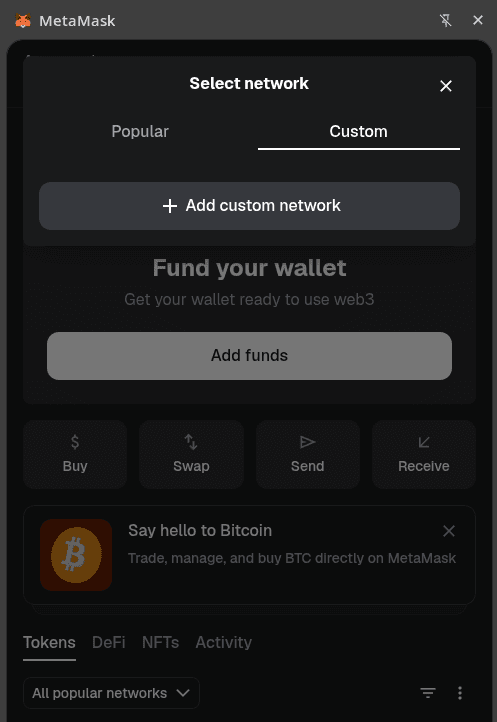
Click the network selector at the top of the MetaMask popup (it usually reads "Ethereum Mainnet" or "All popular networks"). Switch to the Custom tab and click Add custom network.
Step 2: Enter the Mandala values
Fill in the form with the Mandala mainnet values.
| Detail | Value |
|---|---|
| Network Name | Mandala Chain |
| New RPC URL | https://rpc1-mainnet.mandalachain.io |
| Chain ID | 20010 |
| Currency Symbol | KPG |
| Block Explorer URL | https://explorer.mandalachain.io |
Testnet values
For Mandala Testnet (Chain ID 20011, KPGT, settles to Sepolia), use the values from the Testnet Network Details page instead.
Step 3: Save
Click Save. MetaMask switches to Mandala Chain automatically and shows a 0 KPG balance.
Step 4: Verify
The network selector at the top should now read Mandala Chain, and the balance should be denominated in KPG.
Getting KPG
You start with 0 KPG. To send transactions you need KPG for gas. Bridge it from Ethereum via the Arbitrum Portal: see Deposit from Ethereum.
Switching networks
To move between networks, click the network selector and pick the network you want. MetaMask retains every custom network you have added.
Troubleshooting
Cannot connect to Mandala. Confirm the RPC URL is exactly https://rpc1-mainnet.mandalachain.io and the Chain ID is 20010. A wrong chain ID is the most common cause of failed connections.
Forgot your password. Click Forgot password? on the login screen and reset using your Secret Recovery Phrase.
Need a fresh address. Click your account icon and select Add account. Each new account is a fresh address derived from the same Secret Recovery Phrase.